


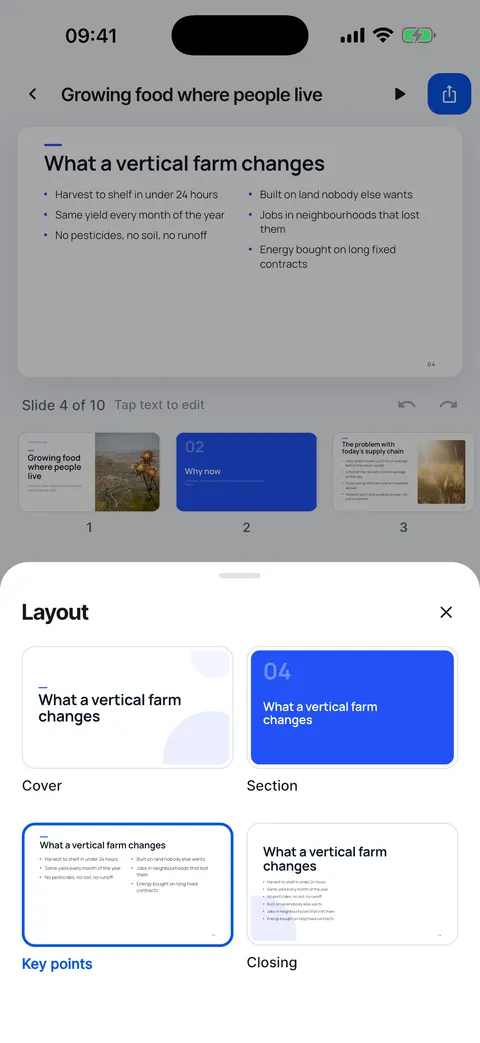
Themes are not per slide: one deck has one theme. PDF and PowerPoint exports use the same theme, so the file looks like the slides in the app.
Change the theme
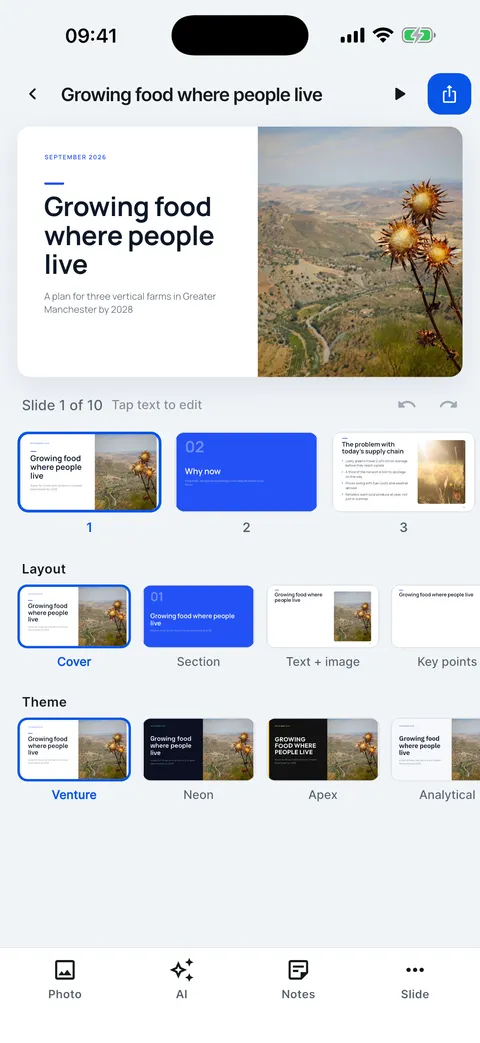
Tap a theme in the Theme row under the slide, or open Theme for all twelve. The whole deck changes and stays laid out.
Steps
In the editor, scroll the Theme row under the slide and tap a theme.
Or open the Theme panel to see all twelve on your own slide.
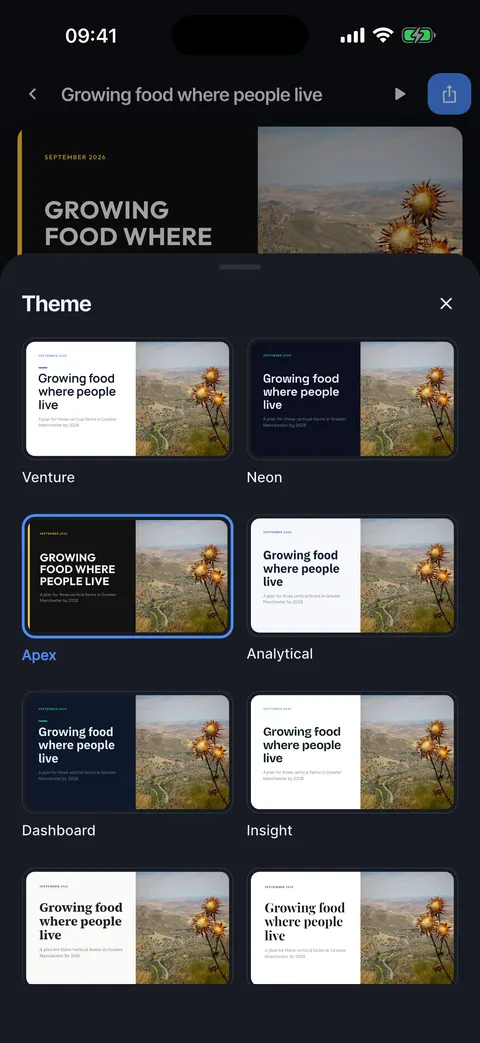
Every slide takes the new colours, fonts and decoration. Undo switches back.
Change the theme and the layout
One tap restyles the whole deck; the layout row changes one slide.
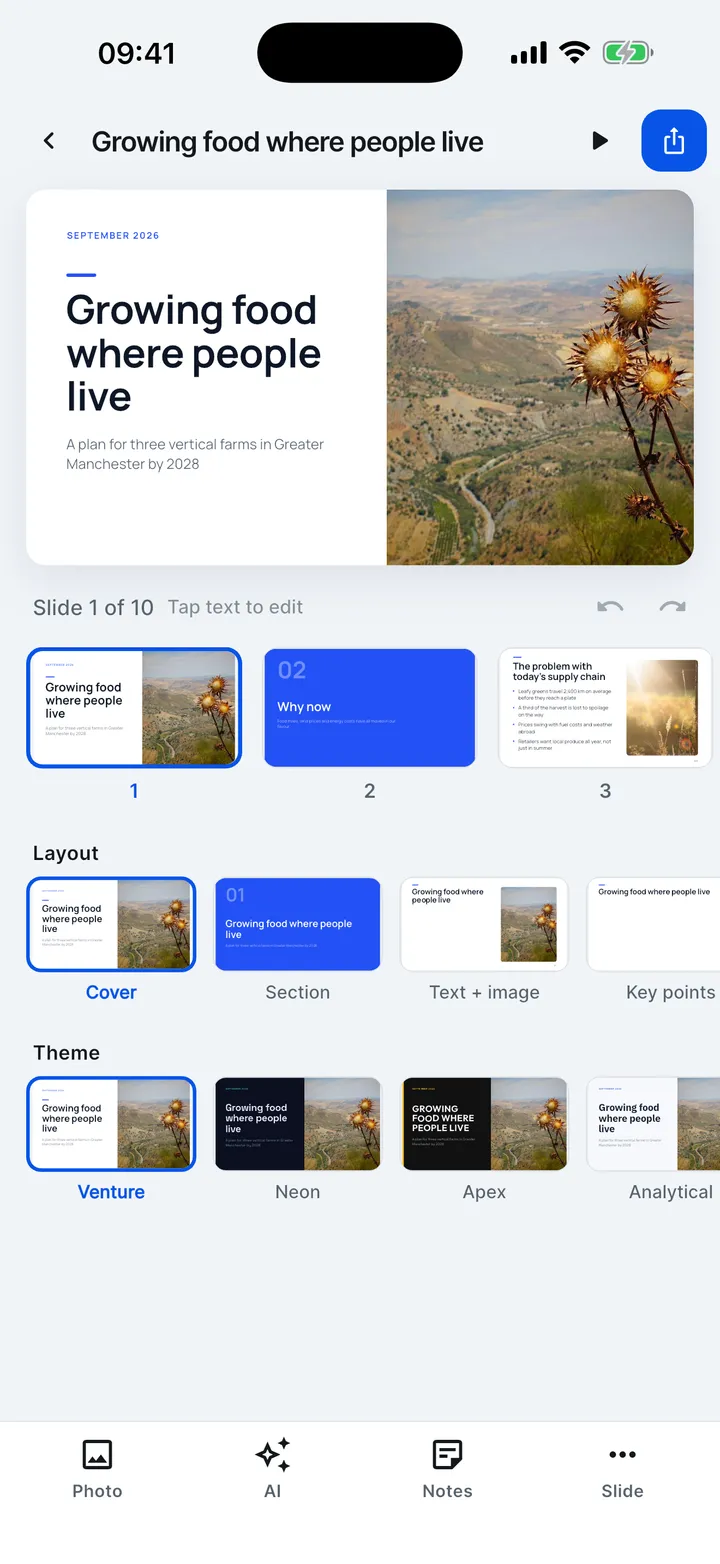

- Under the slide, the Layout row changes this slide’s layout.
- Every layout the slide fits is offered, so nothing is lost.
- The Theme row restyles the whole deck.
- Open Theme to see all twelve on your own slide.
- Tap another theme at any time. Undo brings the previous look back.
Checked on Slide Forge 2.0.0
Was this helpful?
Thank you. That helps us keep the answers right.
Thank you. Tell us what was missing and we will fix the article.Write to support