

Change the tone of the whole deck

Tap AI, then a tone under Whole deck: Professional, Friendly, Academic, Inspiring, Playful or Bold. Every slide is rewritten, and one Undo brings the old deck back.

Steps

  1. Open the deck and tap AI.

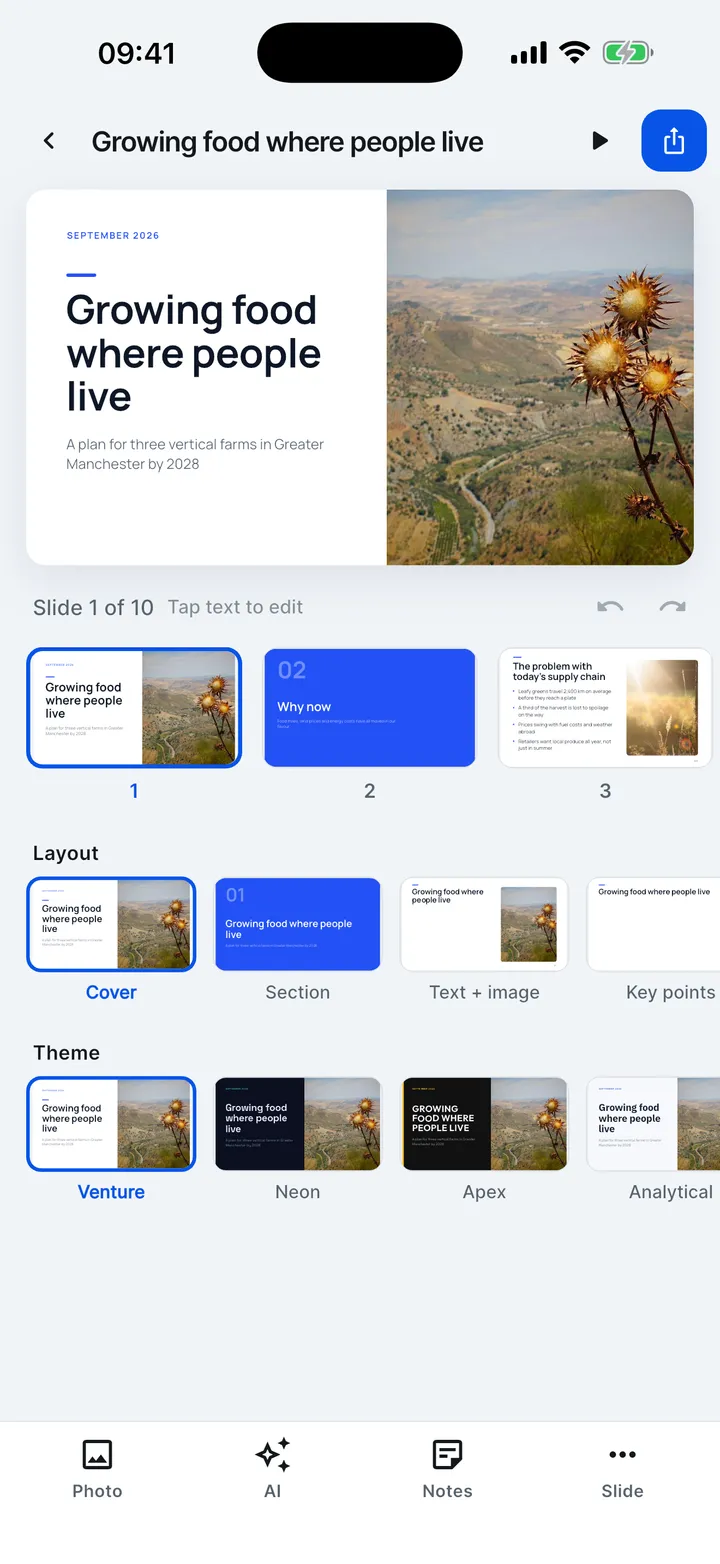
    The editor on iPhone: the slide, the slide strip, layout and theme rows, and the Photo, AI, Notes and Slide tools.
  2. Under Whole deck, tap a tone. Kai rewrites every slide in that tone and keeps every fact, number and name.

    The AI panel: whole-deck tone changes, Simpler words, Shorter, Fix language, Translate, and changes for this slide.
  3. Leave Switch to the matching theme too on to change the theme with the tone, or turn it off to keep the current theme.

  4. The same row also has Simpler words, Shorter and Fix language for the whole deck.

  5. A bar shows Rewriting slide n of n. When it is done, tap Undo if you prefer the old version.

Change the tone of the whole deck

Rewrite every slide in another tone, with one Undo to go back.

  1. In the editor, tap AI.
  2. Under Whole deck, pick a tone.
  3. Keep the matching theme switch on to change the theme with the tone.
  4. Simpler words, Shorter and Fix language work on the whole deck too.
  5. Or change just this slide, or say what to change.

Good to know

  • The change counts as one step, so a single Undo restores every slide.
  • If a few slides could not be changed (for example on a weak connection), the app says how many; the rest are updated.
  • Your first AI change, on one slide or the whole deck, is free. After that, AI changes need VIP.

Checked on Slide Forge 2.0.0

Was this helpful?