


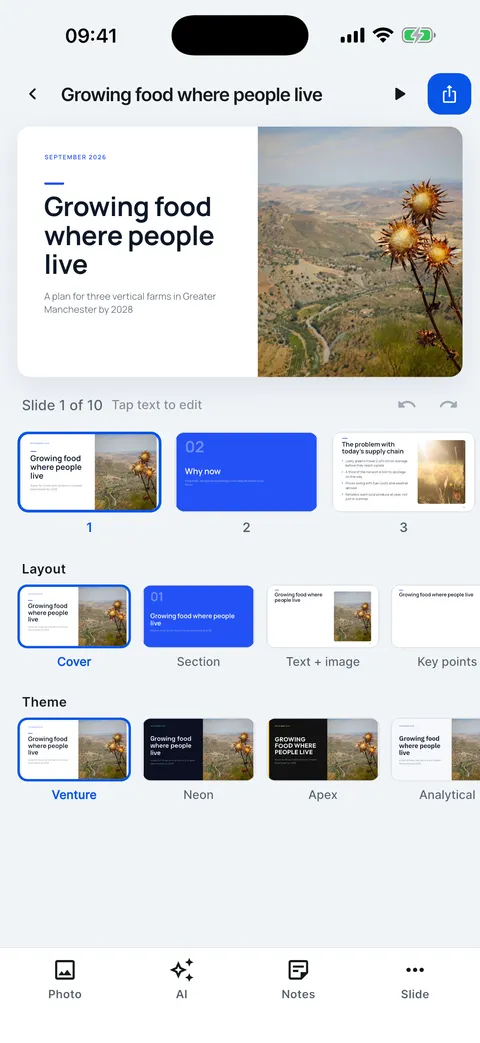
The app language (Settings > App language) and the deck language are separate: you can use the app in German and write a deck in English.
Translate a deck
Tap AI, then Translate, and pick a language. Every slide is translated, keeping its meaning, facts and structure, and the deck language changes with it.
Steps
Open the deck and tap AI.
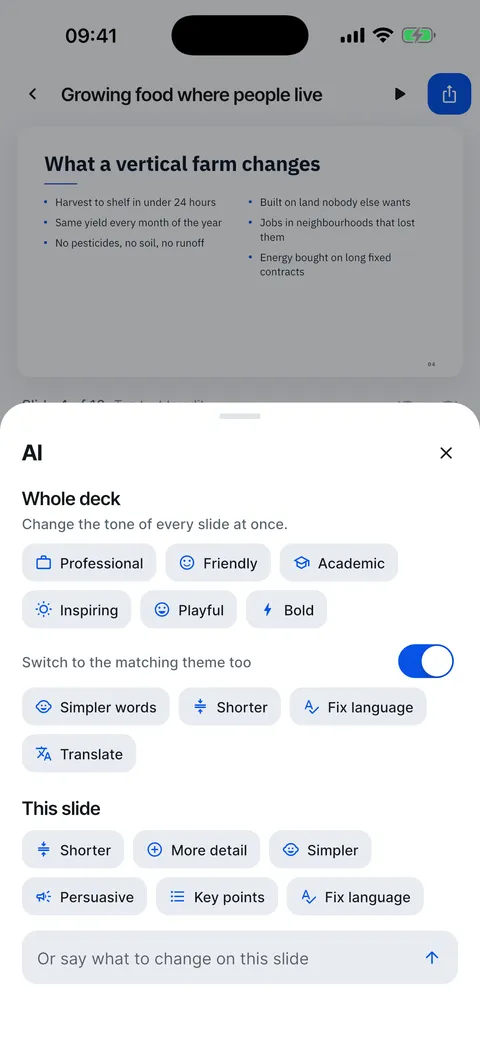
Tap Translate and choose one of the 14 deck languages.
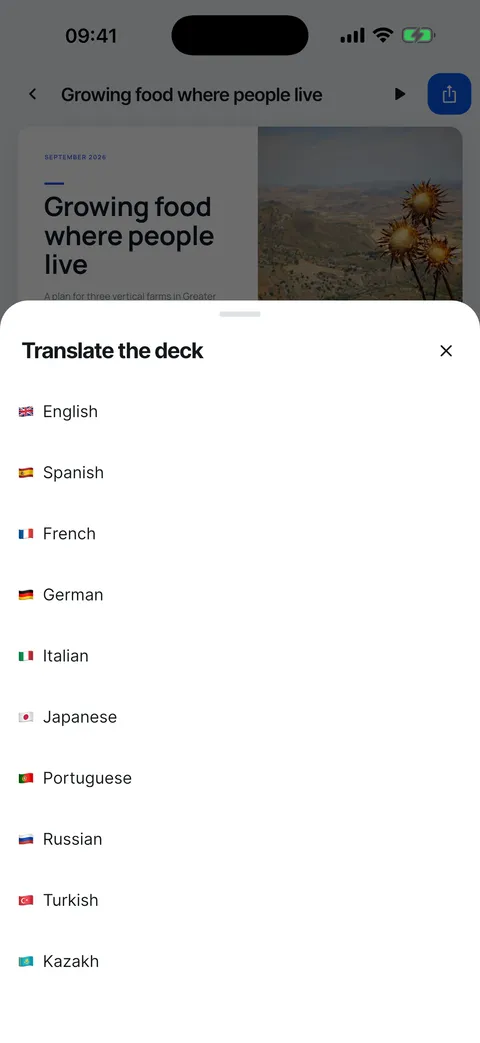
Wait until every slide is done. The cover title is translated too, and the deck is set to the new language.
Want both versions? Export or share the translated deck, then tap Undo to go back to the original.
Translate a deck
Every slide in another language, facts and structure kept.
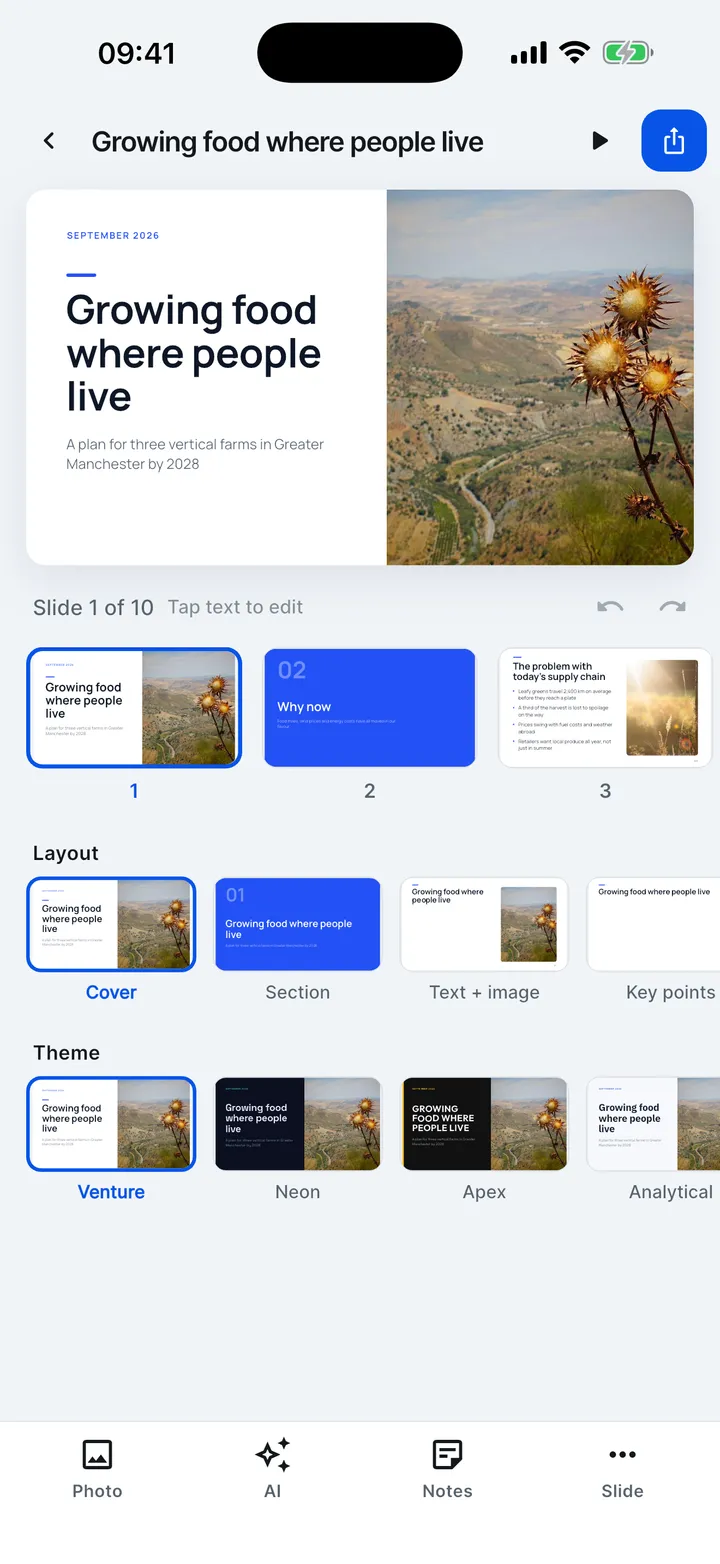

- Open the deck and tap AI.
- Tap Translate.
- Pick one of the fourteen deck languages.
- Kai translates every slide. Undo brings the original back.
Checked on Slide Forge 2.0.0
Was this helpful?
Thank you. That helps us keep the answers right.
Thank you. Tell us what was missing and we will fix the article.Write to support