Export a PDF or PowerPoint file

Tap Export in the editor and choose PDF or PowerPoint. When the file is ready, the share sheet opens so you can save it to Files, mail it or AirDrop it.

Steps

  1. Open the deck and tap Export (top right).

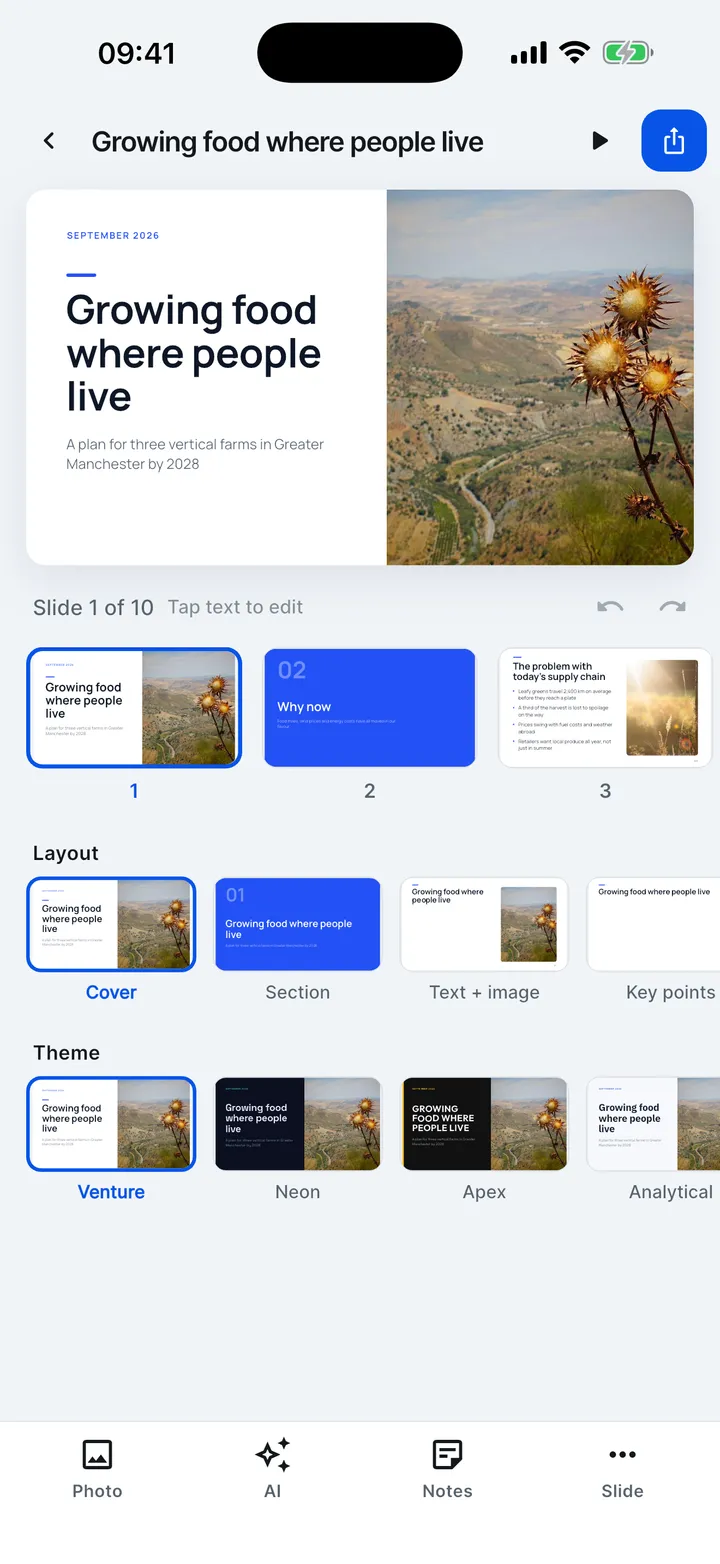
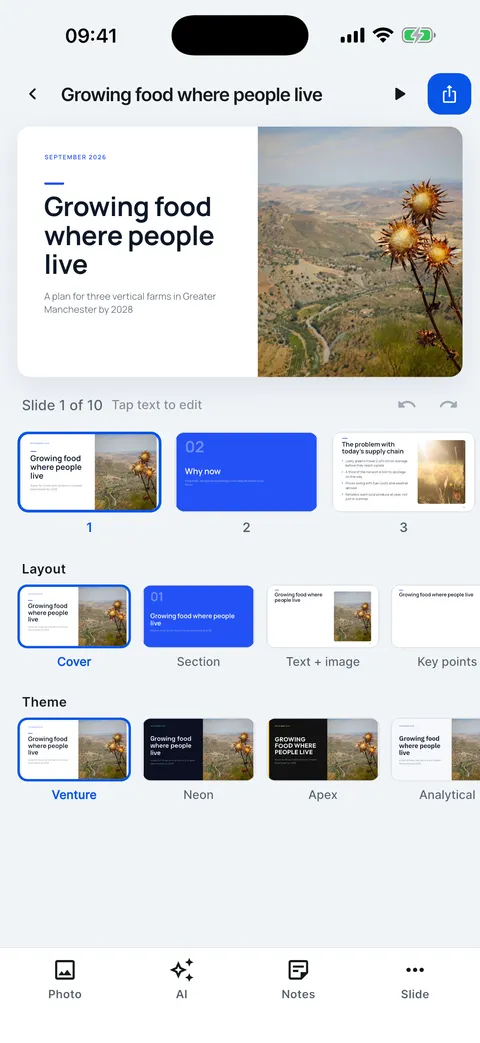
    The editor on iPhone: the slide, the slide strip, layout and theme rows, and the Photo, AI, Notes and Slide tools.
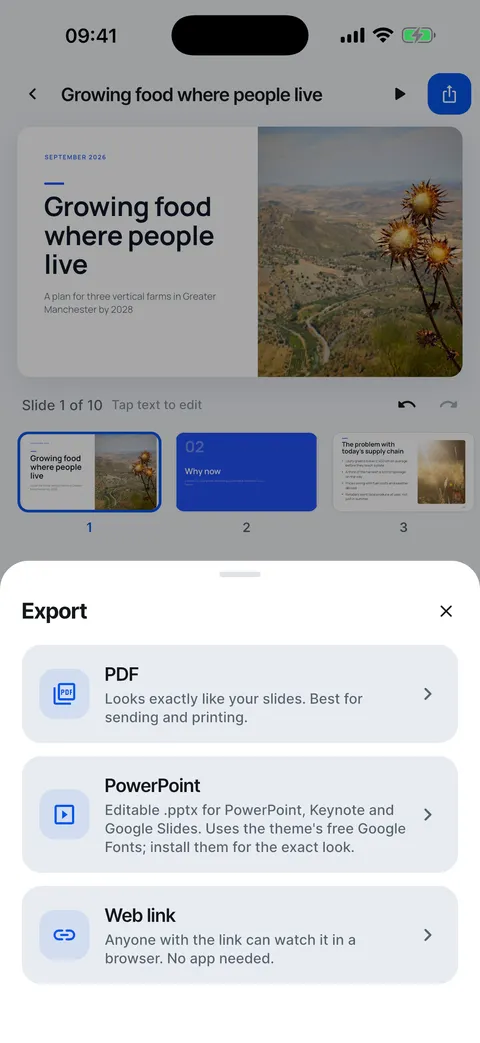
  2. Tap PDF or PowerPoint. A progress bar counts the slides.

    The Export sheet: PDF, PowerPoint and Web link.
  3. When the share sheet opens, choose where the file goes: Save to Files, Mail, Messages, AirDrop or another app.

Export to PowerPoint or PDF

Files that look like your slides, ready to send.

  1. In the editor, tap Export.
  2. Choose PDF or PowerPoint, or make a web link.
  3. The share sheet opens: save to Files, mail it or AirDrop it.

Good to know

  • PowerPoint export is part of VIP. PDF export works on your free deck, with a small credit line.
  • Settings > Slides and export > Preferred export sets which format the Export sheet puts first.
  • Speaker notes go into the PowerPoint file unless you turn off Speaker notes in PowerPoint in Settings.
  • The file is named after the deck.

Checked on Slide Forge 2.0.0

Was this helpful?