



Make your first deck from a topic

Type a topic on Home, choose the length, language and style, then tap Create deck. An eight-slide deck takes about half a minute.

Steps

  1. On Home, tap Type a topic. No idea yet? Tap one of the example topics, or Surprise me on the next screen.

    Slide Forge home screen: the topic box with From a link and From a file, Kai, and recent decks.
  2. Write what the deck is about in a sentence. The more specific, the better the story: “Why our team should move to a four-day week” beats “four-day week”.

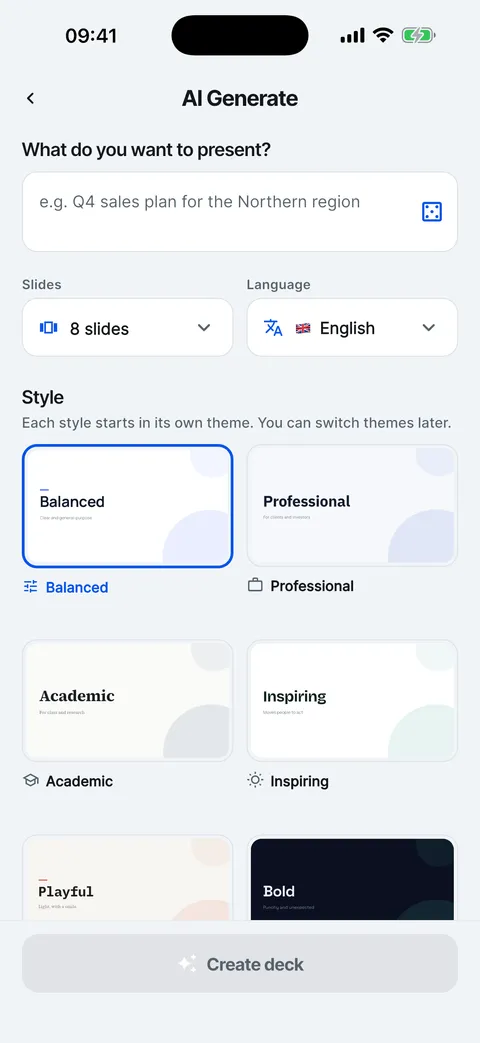
    The create form: topic box, slide count, deck language and the style grid.
  3. Tap Slides to choose between 4 and 16 slides. The sheet shows roughly how long the deck takes to make.

    The How many slides? sheet with counts from 4 to 16 and a time estimate.
  4. Tap Language to pick the deck language, and choose a Style. Each style starts in its own theme; you can switch themes later.

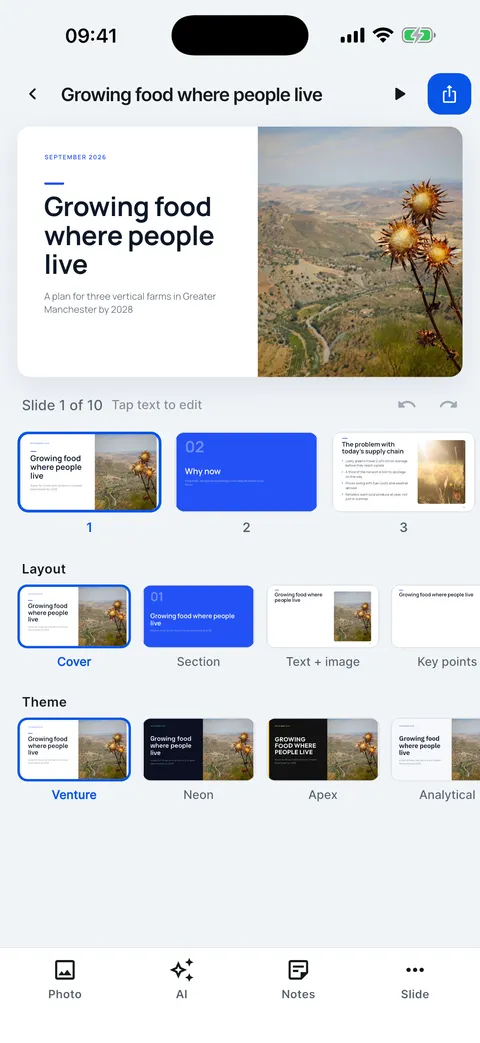
  5. Tap Create deck. Kai plans the story, writes each slide and adds photos. When it is done, the deck opens in the editor.

    Kai at work: planning the story and writing slide by slide.

Make your first deck from a topic

From an empty Home screen to a finished deck in the editor.

  1. Tap Type a topic on Home.
  2. Write what the deck is about in one sentence.
  3. Choose the number of slides, the language and a style.
  4. Tap Create deck. Kai plans the story, then writes each slide.
  5. The deck opens in the editor, ready to change.

Good to know

  • The estimate on the slide count sheet is about 3.5 seconds per slide plus a few seconds to plan, so 8 slides take about 36 seconds.
  • Your defaults for new decks (slide count, deck language, style and whether Kai adds photos) are in Settings > New decks.
  • The first deck is free. After that, new decks need Slide Forge VIP.

Checked on Slide Forge 2.0.0

Was this helpful?