Make a deck from a web link

Tap From a link, paste the address and Kai reads the page. The deck is built from what the page says, not from its title alone.

Steps

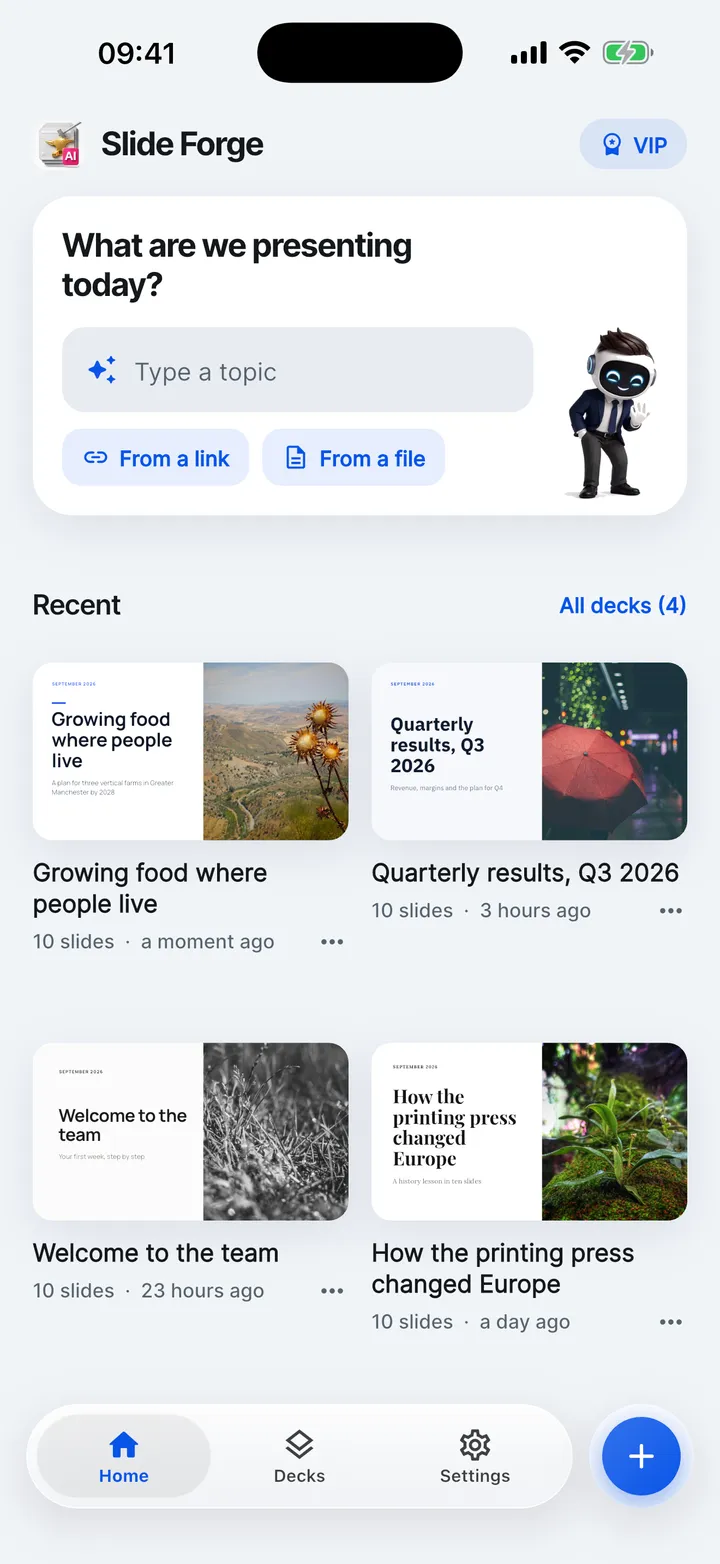
  1. On Home, tap From a link.

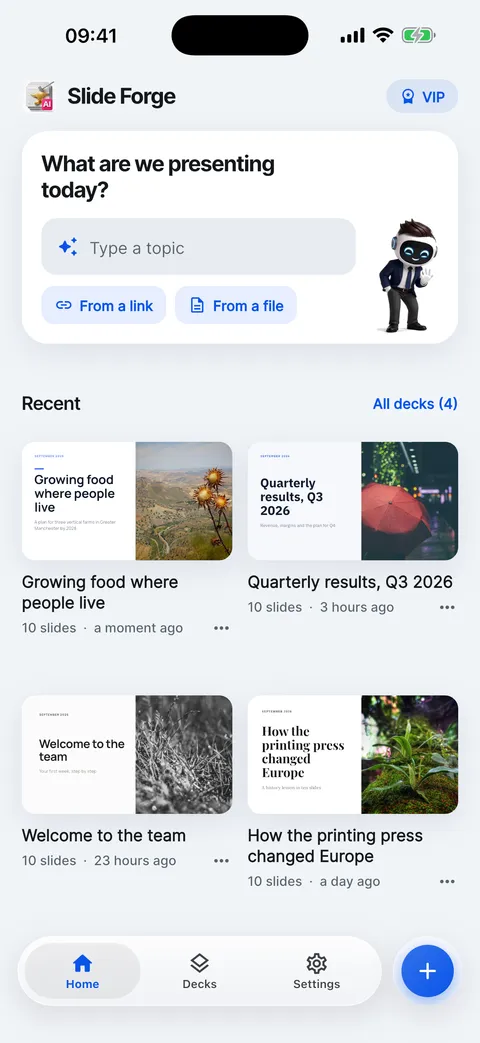
    Slide Forge home screen: the topic box with From a link and From a file, Kai, and recent decks.
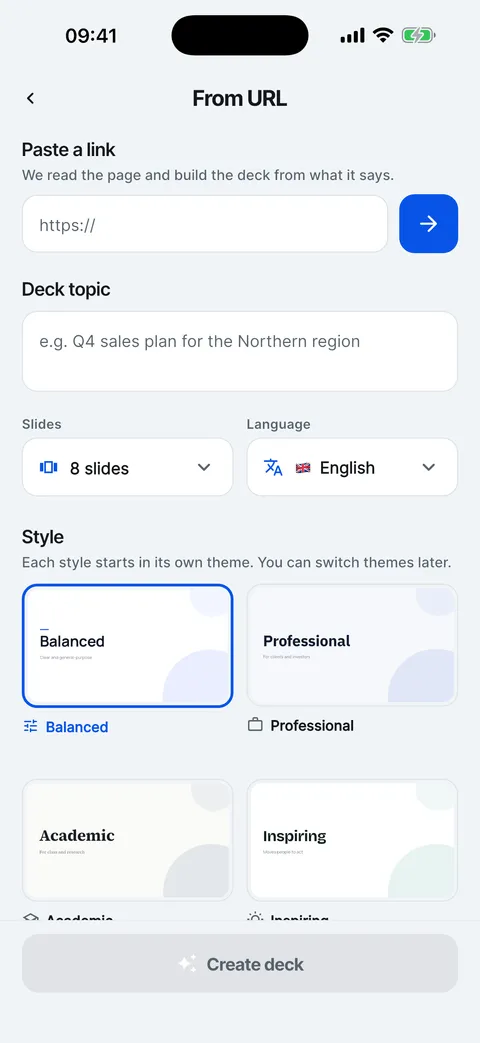
  2. Paste the address of a public web page. Slide Forge reads it and shows how many characters it read. The topic box fills in with the page title; change it if you want a different angle.

    Create from a link: paste a web address and Kai reads the page.
  3. Choose the number of slides, the deck language and a style.

  4. Tap Create deck.

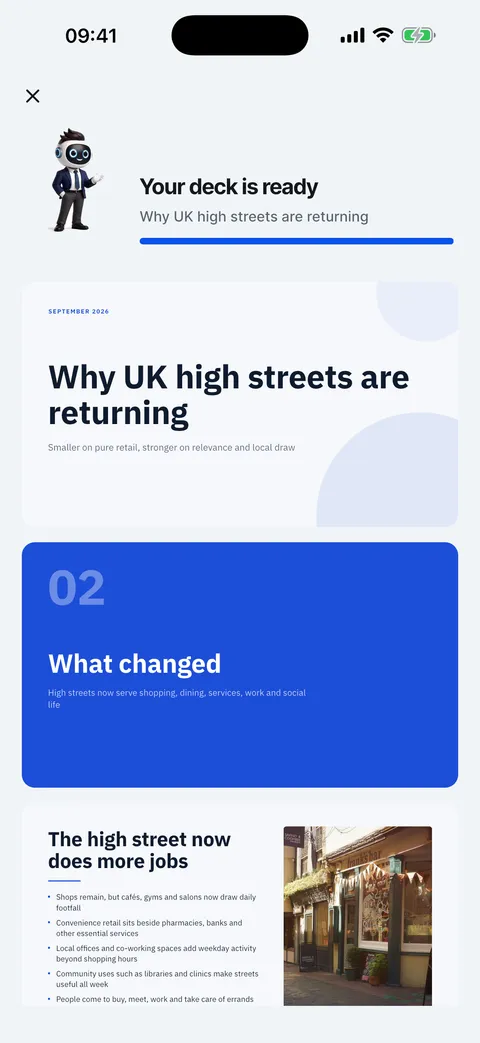
Kai reads a public page and builds the deck from what it says.

  1. On Home, tap From a link.
  2. Paste the address of a public web page.
  3. Kai reads the page. The topic fills in with its title.
  4. Tap Create deck and wait about half a minute.
  5. The deck uses the page’s facts. Check them before you present.

Good to know

  • The page has to be public. Pages behind a login or a paywall cannot be read.
  • Kai uses the page's facts. Check numbers and names before you present: AI can still get details wrong.
  • To rebuild an existing Google Slides deck rather than write a new one from a page, use Import and restyle.

Checked on Slide Forge 2.0.0

Was this helpful?