


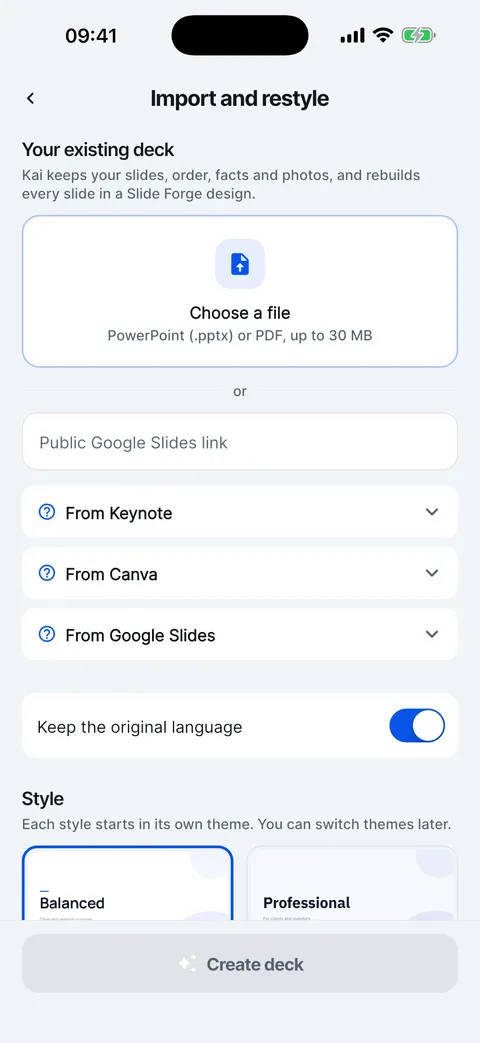
The same steps are in the app: under the file picker, tap From Keynote, From Canva or From Google Slides.
Import from Keynote, Canva or Google Slides
Export the deck as PowerPoint and import that file. A public Google Slides deck can also be imported straight from its link.
Steps
Keynote on Mac: File > Export To > PowerPoint. Keynote on iPhone or iPad: Share > Export and Send > PowerPoint.

Canva: Share > Download > PowerPoint (.pptx).
Google Slides: share the deck as “Anyone with the link” and paste the link under Public Google Slides link, or download it as .pptx and pick the file.
In Slide Forge, tap +, Import and restyle, and choose the file (or paste the link). Then tap Create deck.
Checked on Slide Forge 2.0.0
Was this helpful?
Thank you. That helps us keep the answers right.
Thank you. Tell us what was missing and we will fix the article.Write to support