

Import a PowerPoint or PDF and restyle it

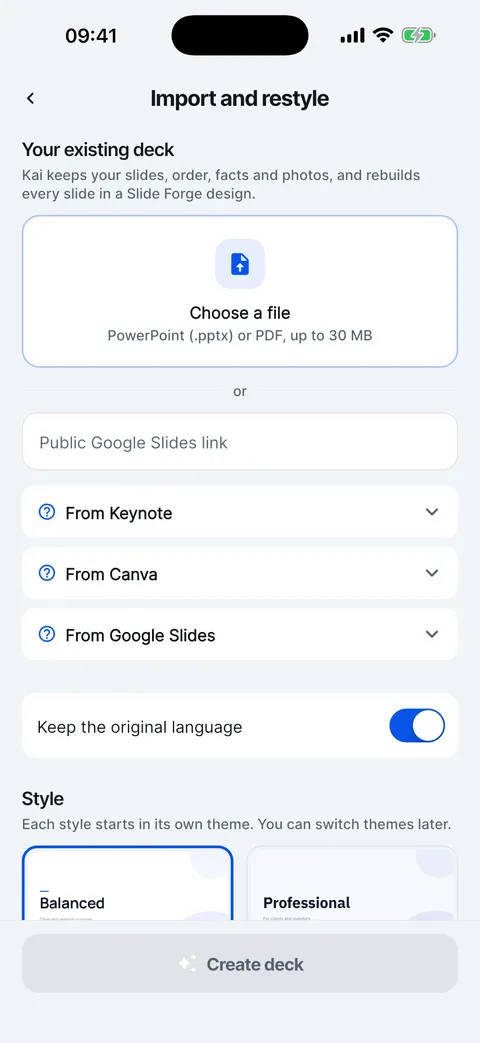
Tap +, then Import and restyle, and choose a .pptx or PDF of up to 30 MB. Kai keeps your slides, order, facts and photos and rebuilds every slide in a Slide Forge design.

Steps

  1. Tap + and choose Import and restyle.

  2. Tap Choose a file and pick the PowerPoint (.pptx) or PDF file.

    Import and restyle: choose a PowerPoint or PDF file or paste a public Google Slides link.
  3. Leave Keep the original language on to keep the deck in its language, or turn it off and choose a language to translate it to.

  4. Pick a Style. It decides the theme the rebuilt deck starts in.

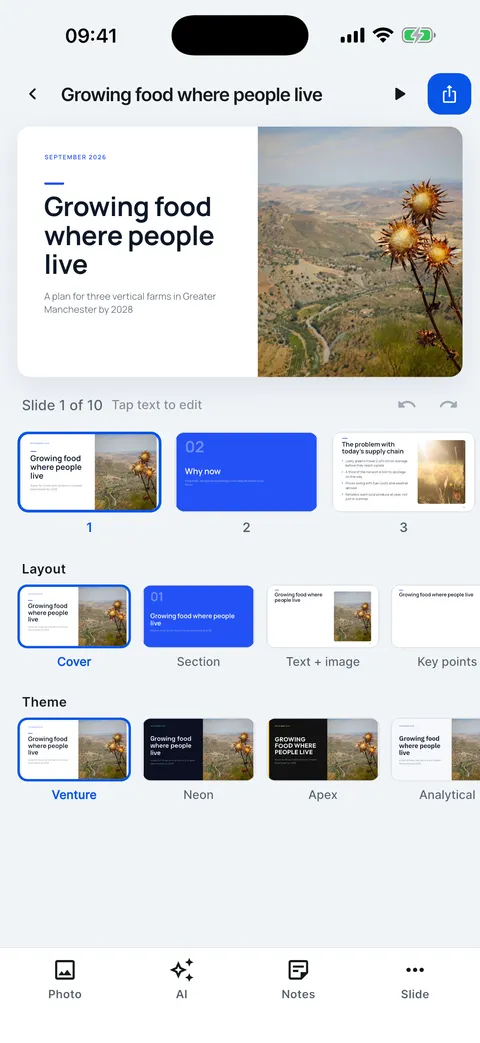
  5. Tap Create deck. The rebuilt deck opens in the editor, where every slide can be changed like any other.

Import a deck and restyle it

A PowerPoint, PDF or Google Slides deck, rebuilt in a Slide Forge theme.

  1. Tap + and choose Import and restyle.
  2. Choose a PowerPoint or PDF file, up to 30 MB.
  3. Or paste a public Google Slides link.
  4. Keep the original language, or turn it off to translate.
  5. Pick a style and tap Create deck.
  6. Same slides, facts and photos, in a new design.

What is kept, what changes

Kai keeps the slides, their order, the facts and your photos. The look is new: every slide is rebuilt in one of the 12 themes and 10 layouts, so fonts, colours and positions from the original are not carried over. Animations and transitions are not imported.

Keynote, Canva and Google Slides decks come in through their PowerPoint export: see From Keynote, Canva or Google Slides.

Checked on Slide Forge 2.0.0

Was this helpful?