


Presenting is always free, on every deck. Set Auto-Lock in the iPhone Settings app to a longer time before a long talk, so the screen does not lock between slides.
Present full screen
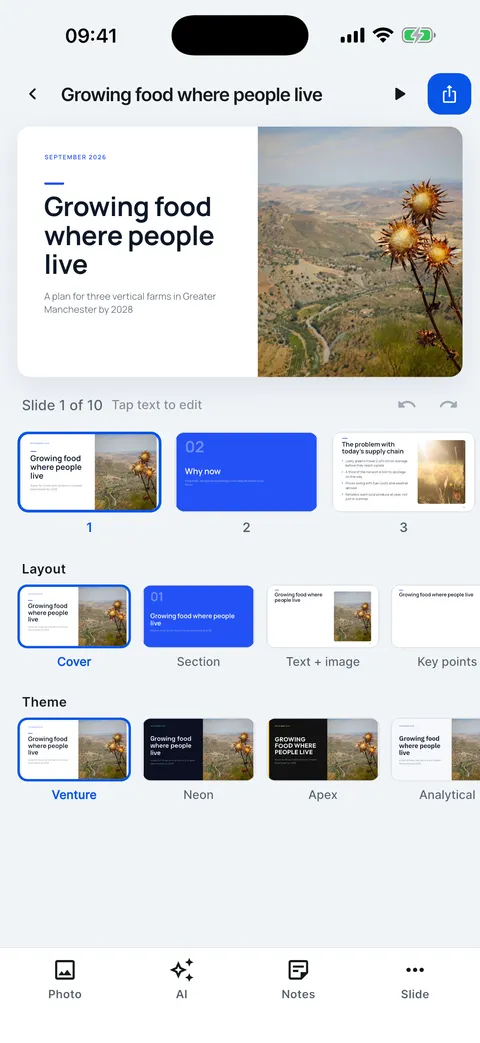
Tap Present (the play button) in the editor. Tap the right or left side, or swipe, to move; tap the middle to show the controls and your notes.
Steps
In the editor, tap the play button at the top. On iPhone you can turn the phone sideways while presenting.
Tap the right side or swipe to go forward; tap the left side to go back.

Tap the middle to show the controls: the slide counter, speaker notes, Present live, and the button to end the presentation. They hide again after a few seconds.
To show it on a bigger screen, use Screen Mirroring (AirPlay) from Control Center or a cable. For a screen you do not control, Present live is often easier.
Checked on Slide Forge 2.0.0
Was this helpful?
Thank you. That helps us keep the answers right.
Thank you. Tell us what was missing and we will fix the article.Write to support