
Use your phone as the remote
Open the live link on a laptop connected to the projector and present from your phone: the laptop follows every slide you move to.
Live presenting is included with VIP, and works on your free deck too.
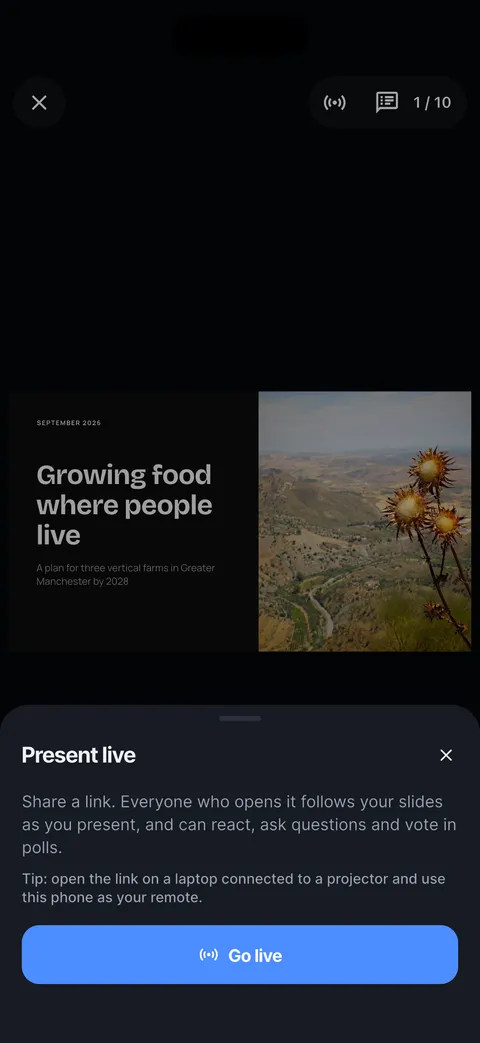
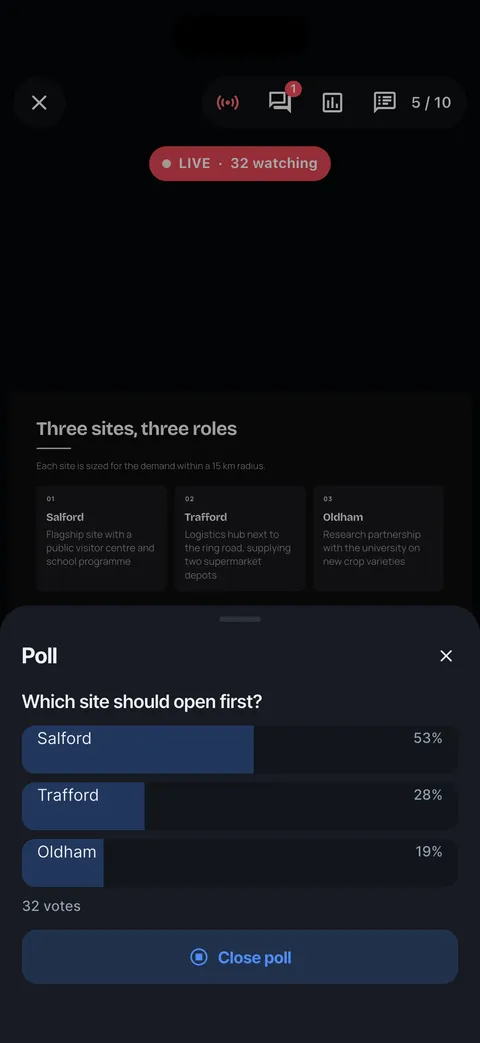
While presenting, tap Present live, then Go live, and share the link. Everyone who opens it sees your current slide and can react, ask questions and vote in polls.
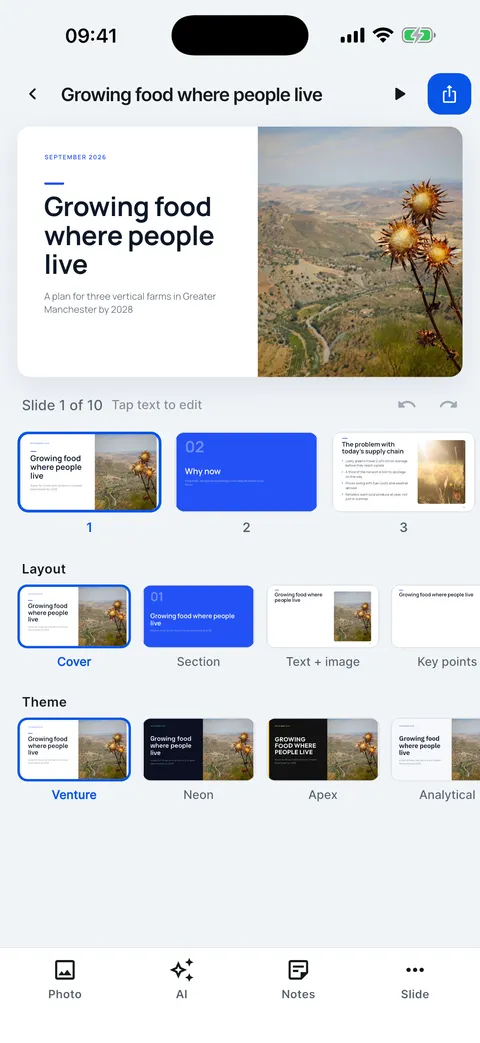
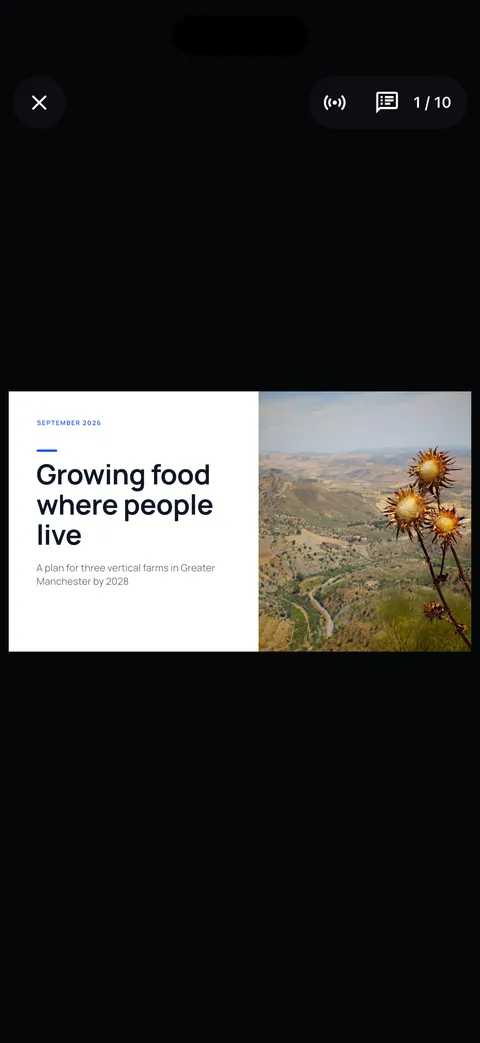
Start presenting and tap the middle of the screen. Tap Present live.


Tap Go live. Slide Forge makes a fresh link for this session.
Tap Copy or Share and send the link, or show it on the first slide. It opens in any browser; nobody needs the app.
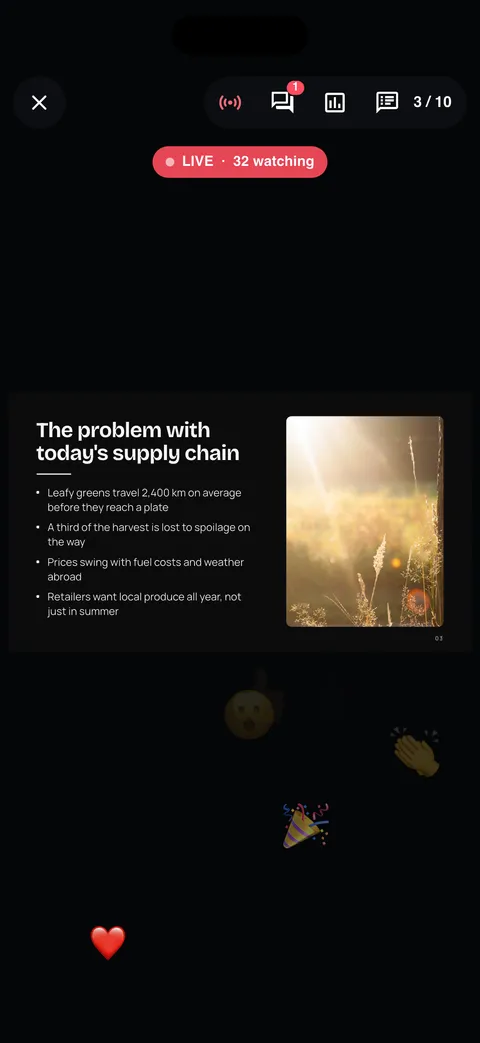
Present as usual. The LIVE badge shows how many people are watching, and reactions float up as they arrive.

When you are done, open Present live again and tap End live session.
Your audience follows on their phones, reacts and votes.
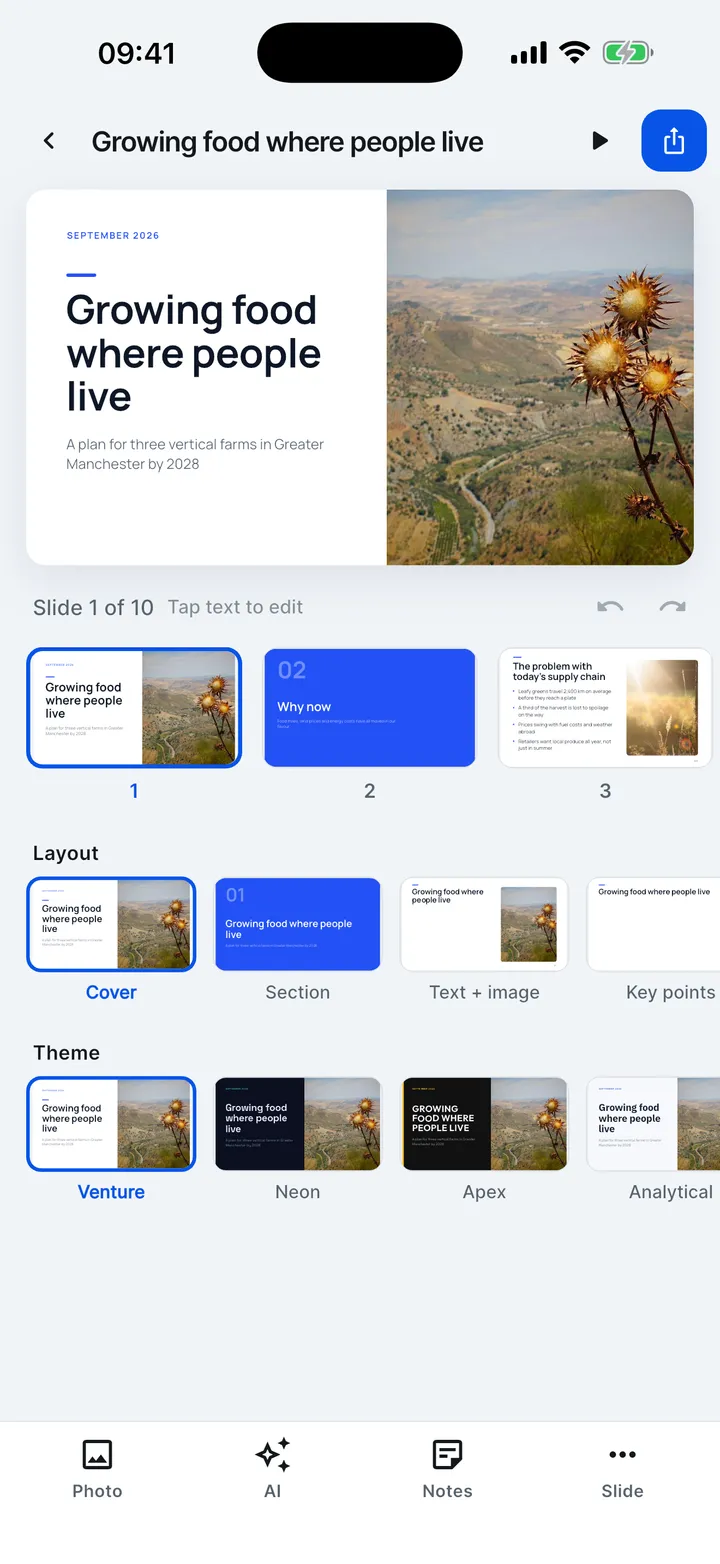
Open the live link on a laptop connected to the projector and present from your phone: the laptop follows every slide you move to.
Live presenting is included with VIP, and works on your free deck too.
Checked on Slide Forge 2.0.0
Was this helpful?
Thank you. That helps us keep the answers right.
Thank you. Tell us what was missing and we will fix the article.Write to support