
Find your way around the app
Slide Forge has three tabs, Home, Decks and Settings, and a + button for a new deck. Everything else happens in the editor.
Steps
Home is where you start a deck from a topic, a link or a file, and where your most recent decks are.


Decks lists every deck on the device. Search titles and slide text, sort, and filter by tag or favourites.
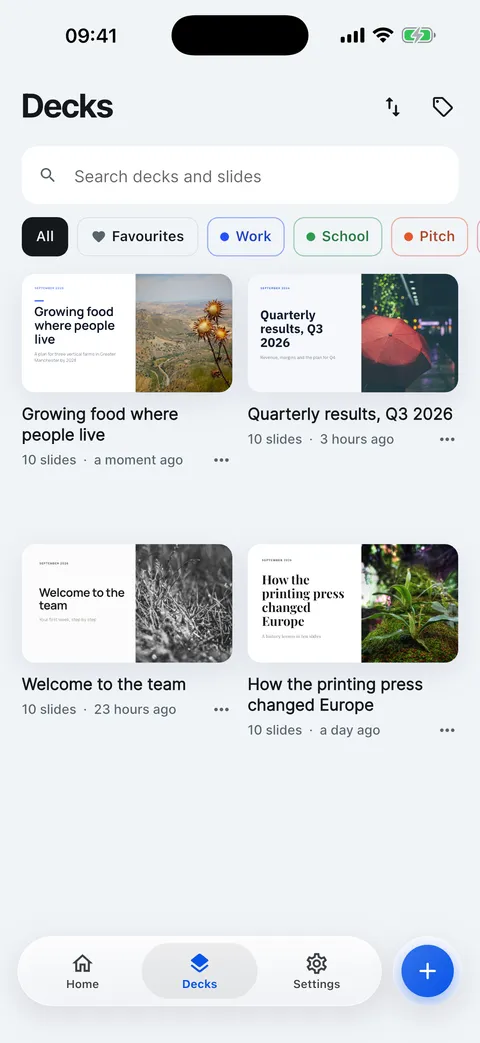
Settings holds appearance, app language, defaults for new decks, export options, iCloud sync, support and your account.
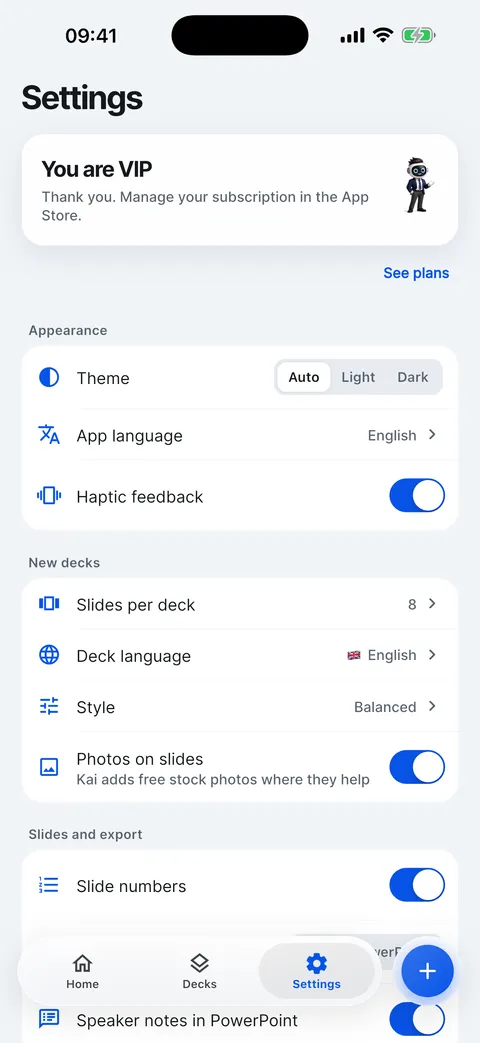
The + button next to the tabs starts a new deck from any tab: a topic, a web page, a document, or an existing deck to import and restyle.


Home, point by point


- Type a topic
Start a deck from a sentence. Kai plans the story and writes the slides.
How to use Type a topic - From a link
Build a deck from a public web page.
How to use From a link - From a file
Build a deck from a PDF, Word, PowerPoint or text file.
How to use From a file - Recent decks
Your latest decks. Tap one to open it in the editor.
How to use Recent decks - Deck menu
Open, present, link stats, tags, favourites or delete.
How to use Deck menu - All decks
Every deck on the device, with search, sort and tags.
How to use All decks - New deck
Start from a topic, a page, a document, or import a deck.
How to use New deck - Settings
Appearance, defaults for new decks, iCloud, support and your account.
How to use Settings
Checked on Slide Forge 2.0.0
Was this helpful?
Thank you. That helps us keep the answers right.
Thank you. Tell us what was missing and we will fix the article.Write to support