
Import any deck and restyle it
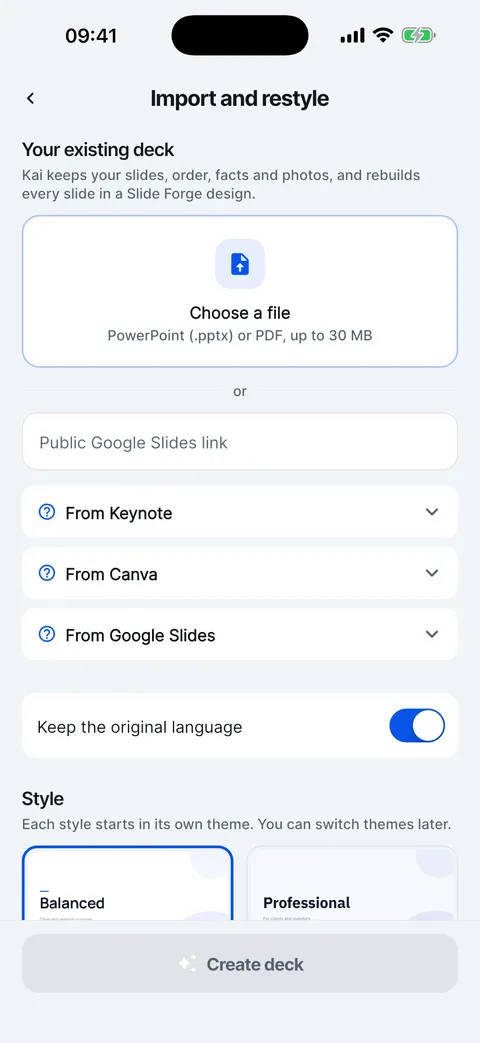
Choose a PowerPoint or PDF file of up to 30 MB, or paste a public Google Slides link. Kai keeps your slides, their order, the facts and your photos, and rebuilds every slide in a Slide Forge theme.


Your content, a new design
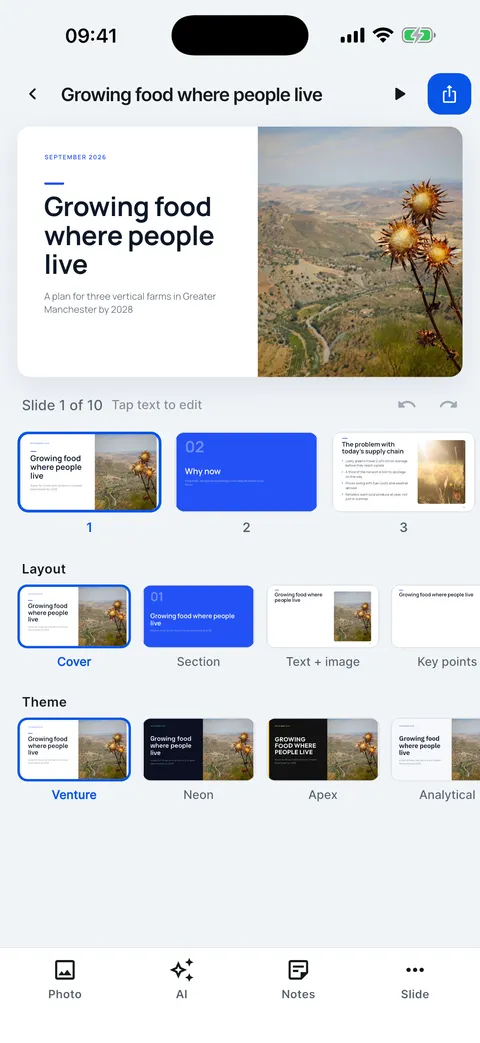
The rebuilt deck is a normal Slide Forge deck: every slide can be edited, restyled, presented and exported like one Kai wrote.

Keynote, Canva and Google Slides
Export the deck as PowerPoint and pick that file. The steps for each are in the app, under the file picker.
- Keynote: File > Export To > PowerPoint
- Canva: Share > Download > PowerPoint (.pptx)
- Google Slides: share as “Anyone with the link” and paste the link
Keep the language, or translate
Leave Keep the original language on, or pick another language and the deck is rebuilt in it.
Import a deck and restyle it
A PowerPoint, PDF or Google Slides deck, rebuilt in a Slide Forge theme.

- Tap + and choose Import and restyle.
- Choose a PowerPoint or PDF file, up to 30 MB.
- Or paste a public Google Slides link.
- Keep the original language, or turn it off to translate.
- Pick a style and tap Create deck.
- Same slides, facts and photos, in a new design.

Help for this feature
- Import a PowerPoint or PDF and restyle itTap +, then Import and restyle, and choose a .pptx or PDF of up to 30 MB. Kai keeps your slides, order, facts and photos and rebuilds every slide in a Slide Forge design.
- Import from Keynote, Canva or Google SlidesExport the deck as PowerPoint and import that file. A public Google Slides deck can also be imported straight from its link.
- Keep or translate an imported deckAn imported deck keeps its original language unless you turn off Keep the original language and pick another one before you create it.