
Present live, with reactions, questions and polls
Share a link and everyone who opens it sees the slide you are on, in any browser. They can send reactions and questions and vote in polls. Your iPhone becomes the remote.


Go live in two taps
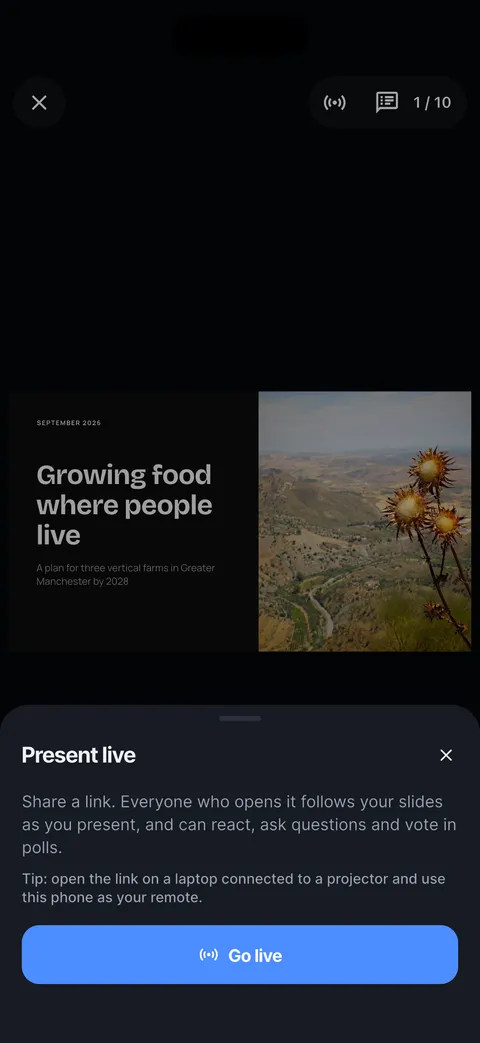
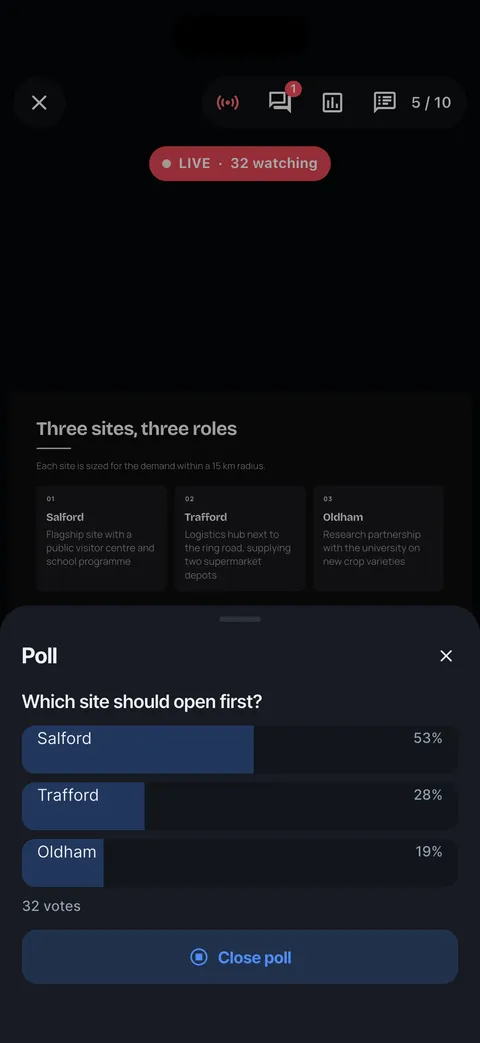
While presenting, tap Present live, then Go live. Copy or share the link. The LIVE badge shows how many are watching.

Polls
Write a question with up to six options, or use Yes / No or 1-5. Results come in as percentages as people vote.


Questions and reactions
Questions collect in one list, with names if people give them. Mark each answered. Reactions float up on your screen.

Your phone as the remote
Open the live link on the laptop connected to the projector and present from your phone. The laptop follows every slide.
Present live with a poll
Your audience follows on their phones, reacts and votes.
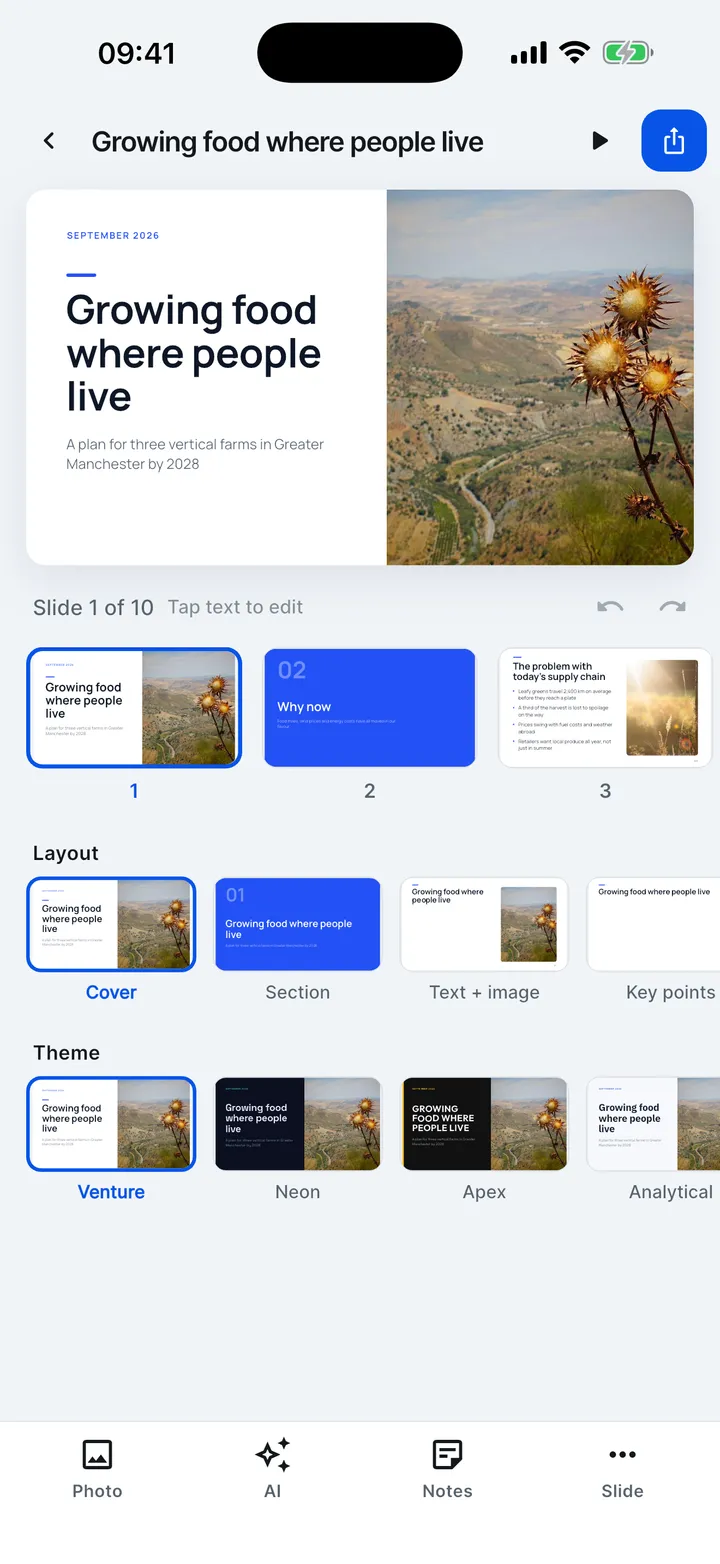
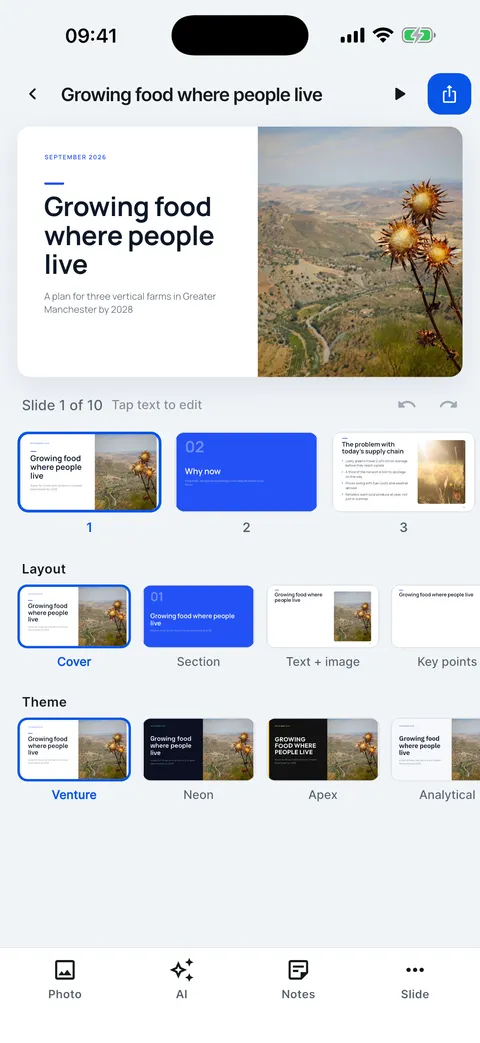
- In the editor, tap the play button to present.
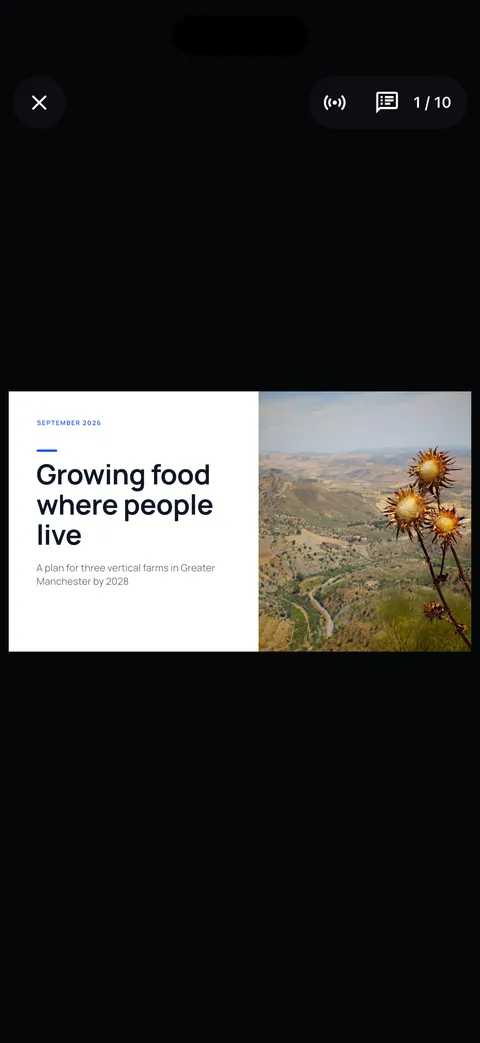
- Tap the middle of the screen, then Present live.
- Tap Go live and share the link. Nobody needs the app.
- The LIVE badge shows how many are watching.
- Start a poll: results come in as people vote.
- Tap Close poll when you have your answer.

Help for this feature
- Present live: your audience follows on their phonesWhile presenting, tap Present live, then Go live, and share the link. Everyone who opens it sees your current slide and can react, ask questions and vote in polls.
- Run a poll during a live presentationWhile live, tap the poll button, write a question with up to six options (or use Yes / No or 1-5), and tap Start poll. Results update as people vote.
- Take questions and see reactionsDuring a live presentation your audience can send questions and reactions. Questions collect in the Questions sheet, where you mark them answered.
- Present full screenTap Present (the play button) in the editor. Tap the right or left side, or swipe, to move; tap the middle to show the controls and your notes.