
Made for iPad, too
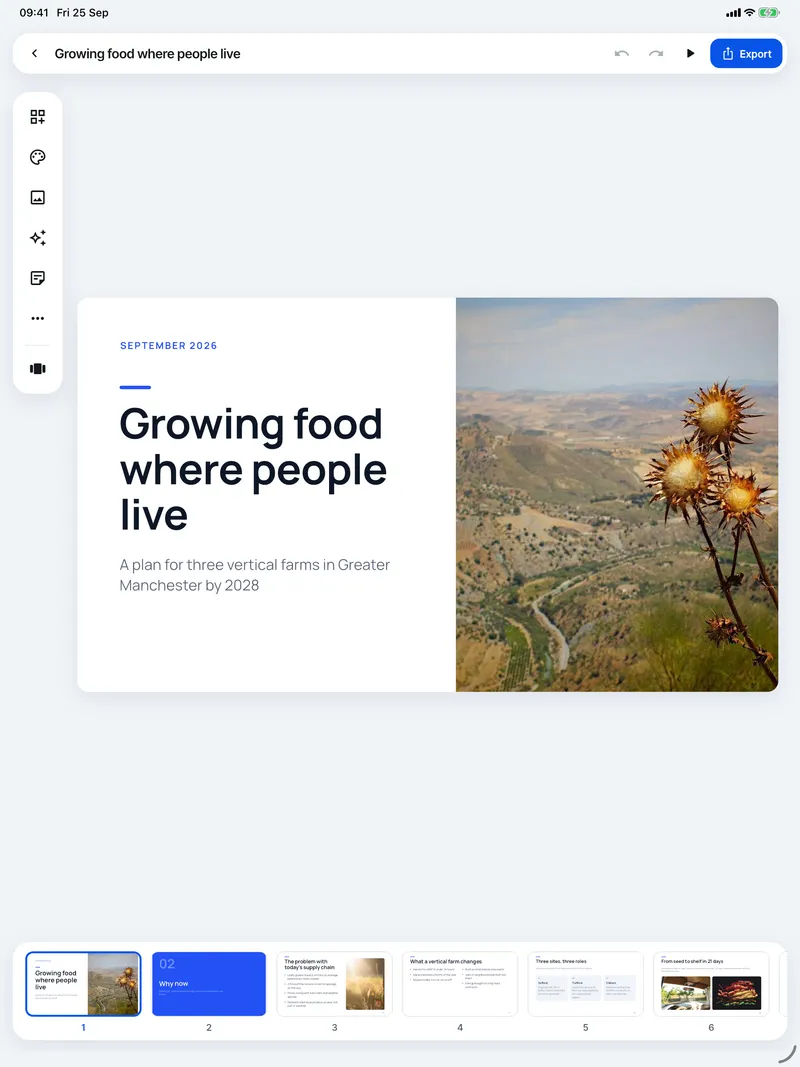
On iPad the slide gets the whole screen. The tool palette floats at the side, panels open next to the slide instead of over it, and the slide strip can be hidden for more room.


Panels beside the slide
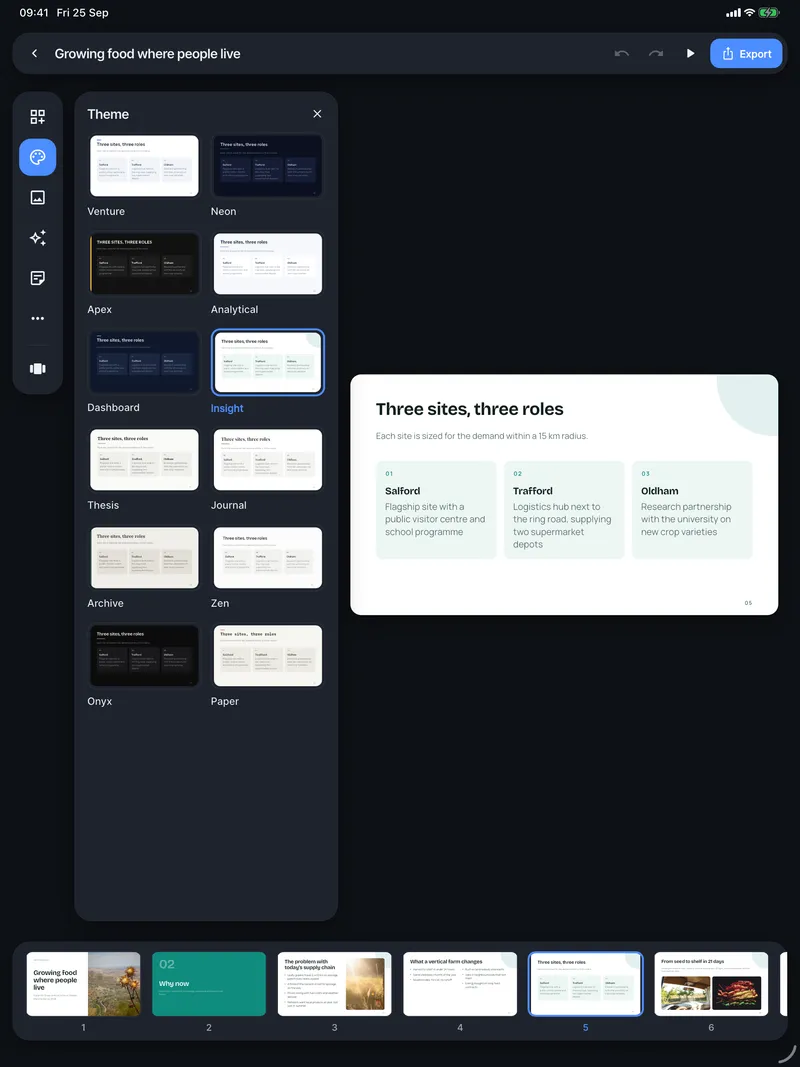
Layout, Theme, Photo, AI, Notes and Slide open in a floating panel, and the slide moves over so it is never covered.

Pencil hover and pointer
Hover with Apple Pencil or a trackpad pointer to see the name of a tool before you tap it.
Keyboard shortcuts
Command-Z undo, Command-Shift-Z redo, arrow keys between slides, Command-Return to present.
Foldables too
Foldable iPhones get the iPad editor when unfolded and the phone editor when folded.
Edit on iPad
The whole screen for the slide, the tools floating beside it.
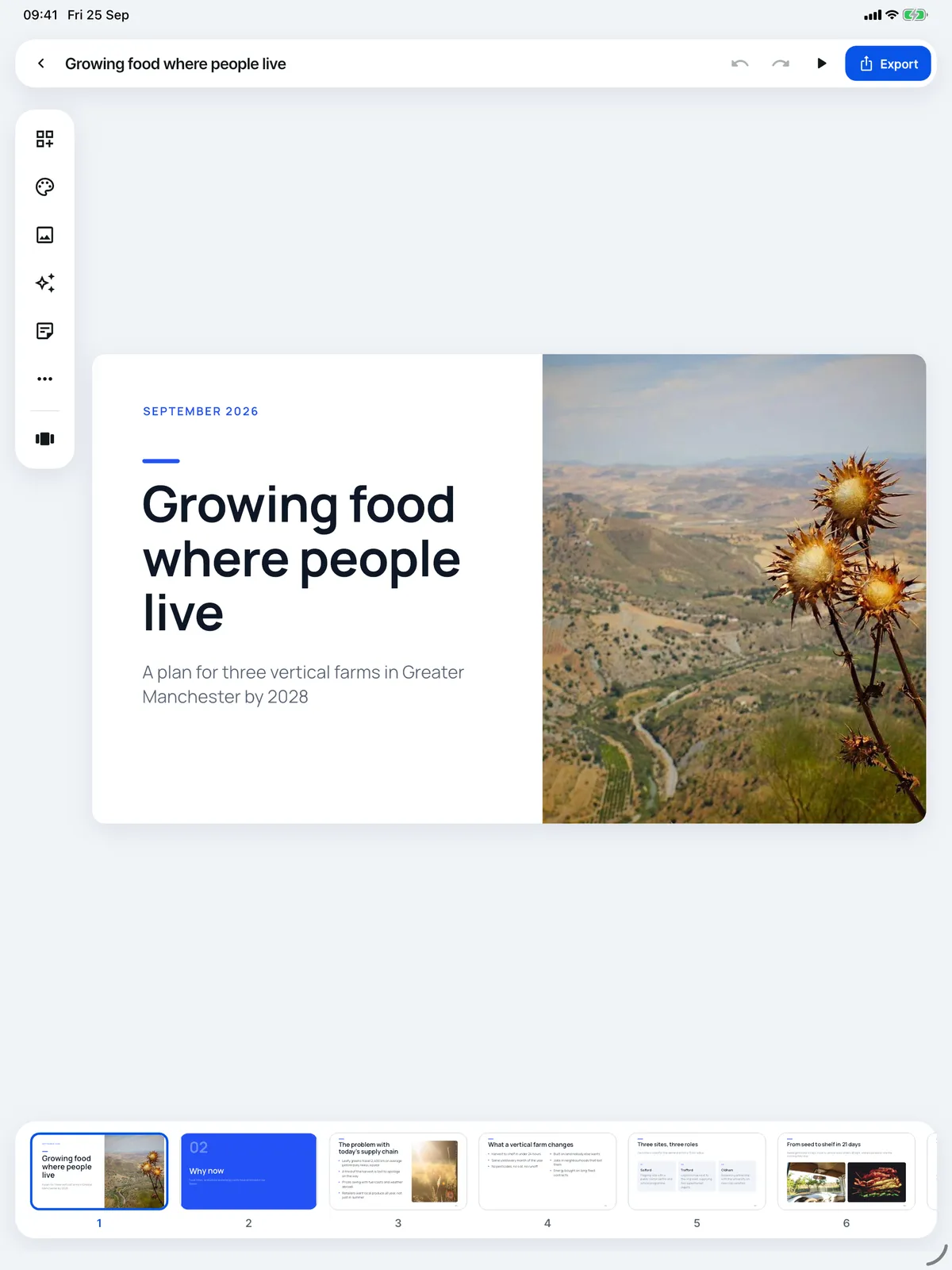
- On iPad the slide gets the whole screen.
- The tools float on the left. Hover with Apple Pencil to see their names.
- Panels open beside the slide, never over it.
- AI changes work the same way as on iPhone.
- The slide strip runs along the bottom.

The iPad editor, point by point
- Layout
Every layout this slide fits.
How to use Layout - Theme
Twelve themes for the whole deck.
How to use Theme - Photo
Free stock photos for the slide.
How to use Photo - AI
Rewrite this slide or the whole deck.
How to use AI - Notes
Speaker notes, shown while you present.
How to use Notes - Show or hide slides
Toggle the slide strip for more room.
How to use Show or hide slides - The slide
Tap any text to edit it.
How to use The slide - Present
Full screen or live.
How to use Present - Export
PDF, PowerPoint or a web link.
How to use Export - Slide strip
Every slide, in order.
How to use Slide strip
Help for this feature
- Edit on iPadOn iPad the slide gets the whole screen. The tools float on the left, their panels open beside the slide, and the slide strip can be shown or hidden.
- Slide Forge on iPhone and iPadOne app for both. It needs iOS or iPadOS 15 or later, and iCloud keeps your decks in step between your devices.